A shared view.
Watch your Steam Frame’s video right on your Mac, over your local network.
Live preview · Video only STREAM FRAME
A LOCAL CONNECTION. A BIGGER VIEW.
Bring your Steam Frame’s video to your Mac. Watch live, record a clip, or save a screenshot—all over your local network.
Download for macOSmacOS 14+ · Apple Silicon & Intel · v1.1.0
iPhone & iPad Coming soon
YOUR VIEW, BROUGHT TO LIFE
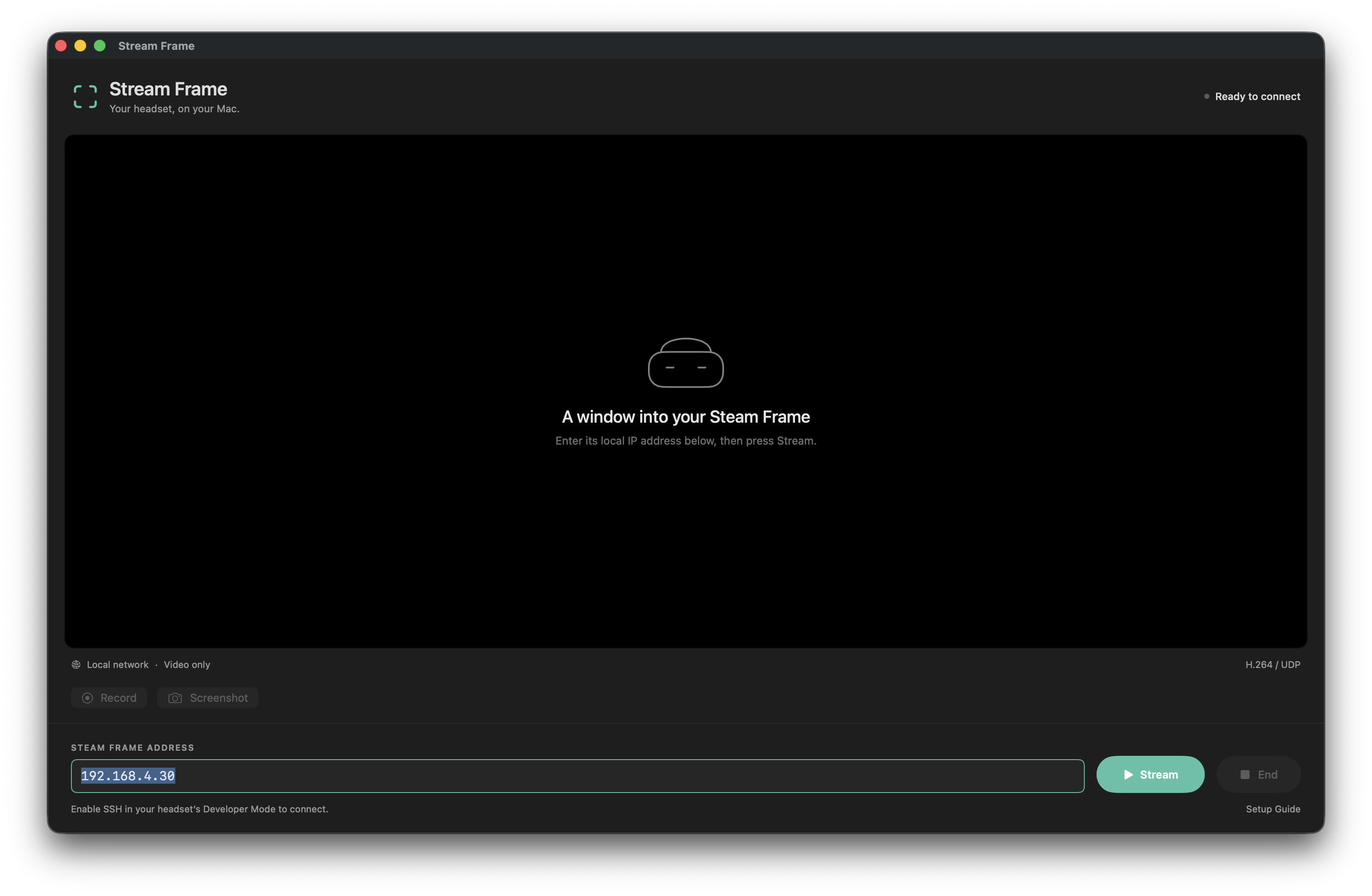
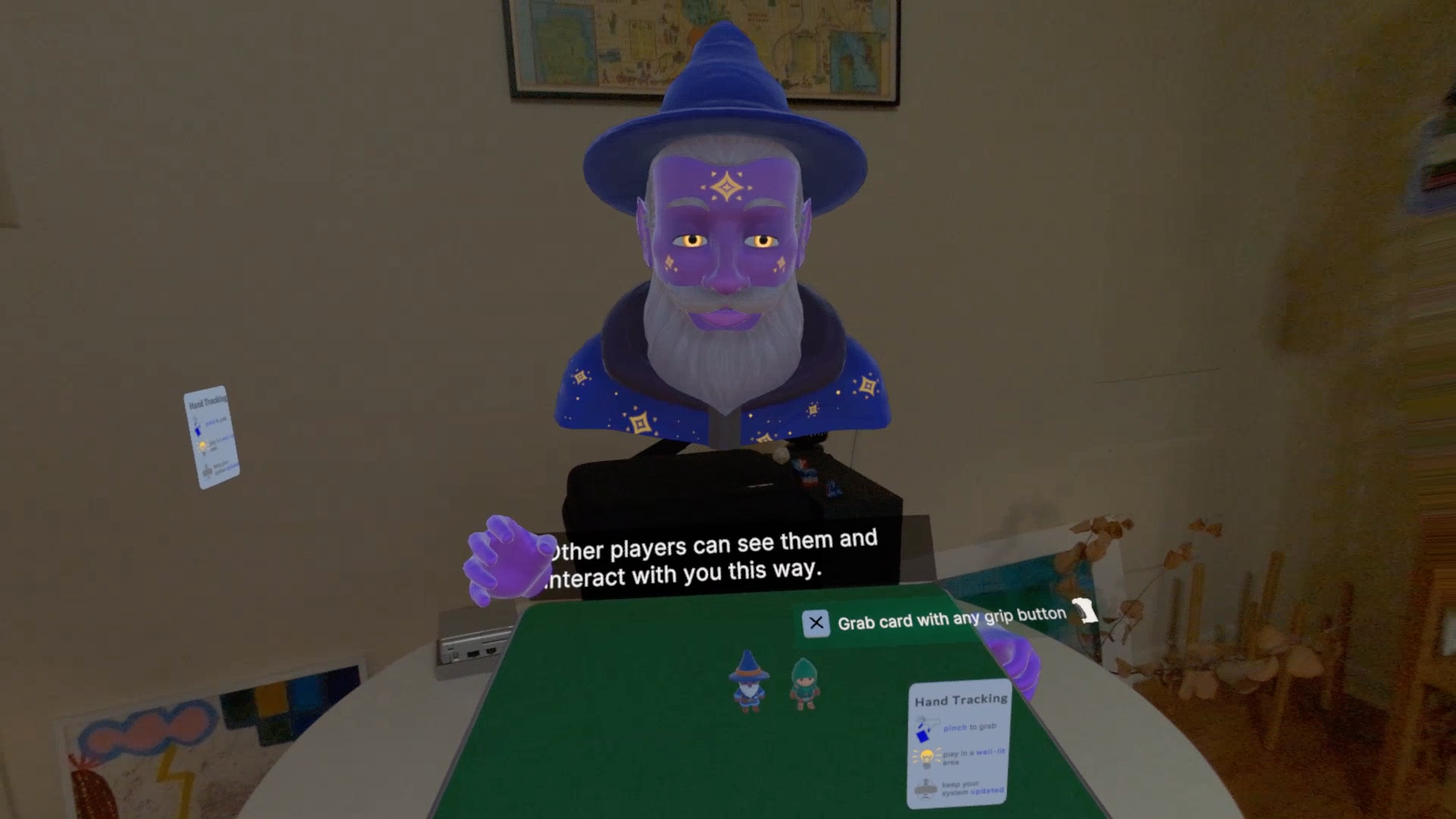
Watch your Steam Frame’s video right on your Mac, over your local network.
Live preview · Video onlyStart and stop recording from the app. Save an MP4 locally, ready to watch or share.
Record a clip · Save as MP4Save the current frame as a PNG. Choose where it goes with the familiar macOS save dialog.
Take a screenshot · Save as PNGFROM HEADSET TO DESKTOP
Connect your Mac and Steam Frame to the same local network. Enable SSH in the headset’s Developer Mode.
Open Stream Frame, enter your headset’s local IP address, and press Stream. Complete the SSH sign-in when prompted.
Watch, record, or capture a screenshot. Press End to stop the headset’s stream and disconnect cleanly.
Video only; audio isn’t streamed. The headset needs SSH access, ffmpeg, and its video capture device. The app’s Setup Guide has the details.
READY WHEN YOU ARE
Unzip, move Stream Frame to Applications,
and open it to get started.